Features
Switch harnesses mid-session without losing your place
Move an open pane from Claude Code to Codex with a handoff of the conversation instead of a new pane. Shipped in AgentGrid v2.8.33.
 AgentGrid
In this story
Until this release, a pane in AgentGrid was married to the harness it was born with. If you started a worker on Claude Code and wanted Codex to take over, the only option was a new pane: a new id, a new position on the canvas, a new worktree binding, and a transcript that started from nothing. The conversation you had built up stayed behind in the old pane.
That is a real cost, because the reasons to switch tend to show up in the middle of the work, not at the start of it.
No other agent tool lets you do this. In AgentGrid, the pane stays; only the harness changes.
Why you would switch in the middle
- ⏳ Out of usage. You hit a limit on one provider, the task is half done, and the next window is hours away. A harness with its own quota is right there.
- 🧠 Second opinion. You want another model family to look at the same plan or diff, with the context the first one had rather than a summary you typed by hand.
- 🛠️ Better tool for the job. One harness is stronger at what is in front of you. Which one depends on your codebase, and you find out by trying.
In every case the pane is fine. Its position, its worktree and its history are exactly what you want to keep. Only the harness needs to change.
What the switch does
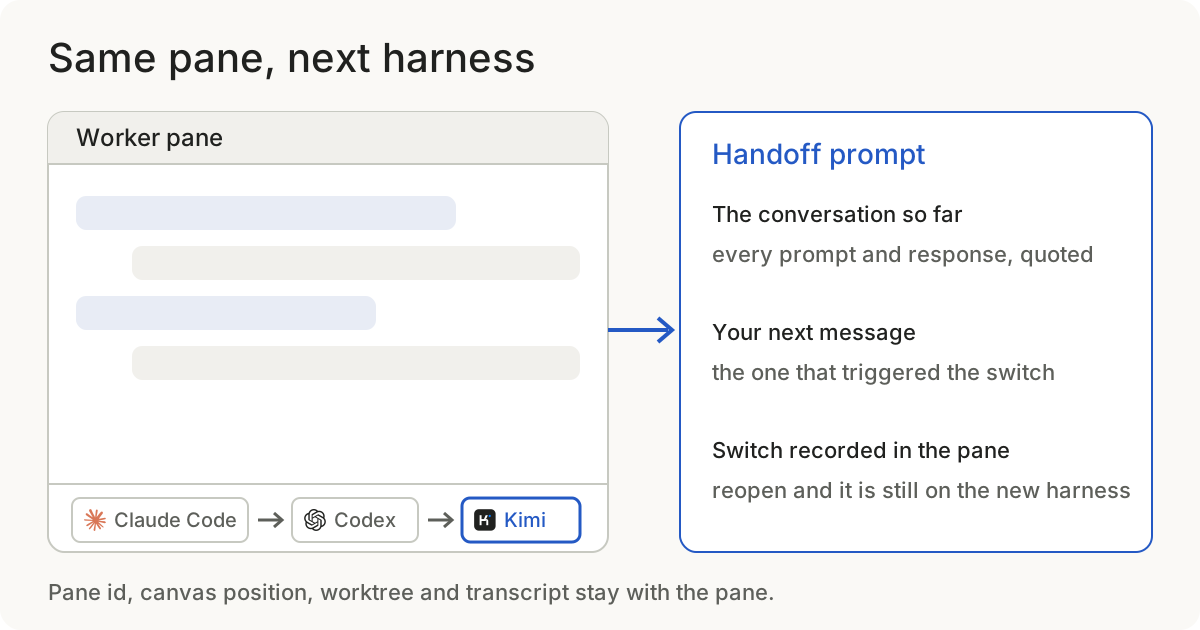
Every master and worker pane now has a harness selector in its footer. Pick a different harness and model there and nothing happens yet: the choice waits for your next message, and that message is what triggers the switch.
When it does, AgentGrid closes the old session and hands the new harness the conversation so far, followed by the message you just sent. The new harness reads that as its first turn and carries on from where the previous one stopped. The switch is recorded in the pane, so when you reopen the app the pane comes back on the new harness rather than quietly reverting to the old one.
In the transcript you see your message as you typed it. The carried-over conversation sits beneath it in a collapsed Handoff context disclosure, so you can check what the new model was given.
What it is not
This is a handoff of the conversation text, not shared memory. The new harness gets the prompts and responses so far; it does not inherit the old one's internal state, cached file reads or tool results. From the first turn onward it works the way it always does. Its permission model applies, its strengths and quirks apply, and if it wants to re-read a file it will.
Works with every harness
Claude Code, Codex, Cursor, Grok, Hermes, Kimi, Pi, Antigravity, Devin and OpenCode. Switch from any of them to any other, in either direction, and the handoff is the same: the conversation so far, then your message.
 Claude Code
 Codex
Codex
 Cursor
 Grok
Grok Hermes
 Kimi
Kimi
 Pi
Pi Antigravity
 Devin
Devin
 OpenCode
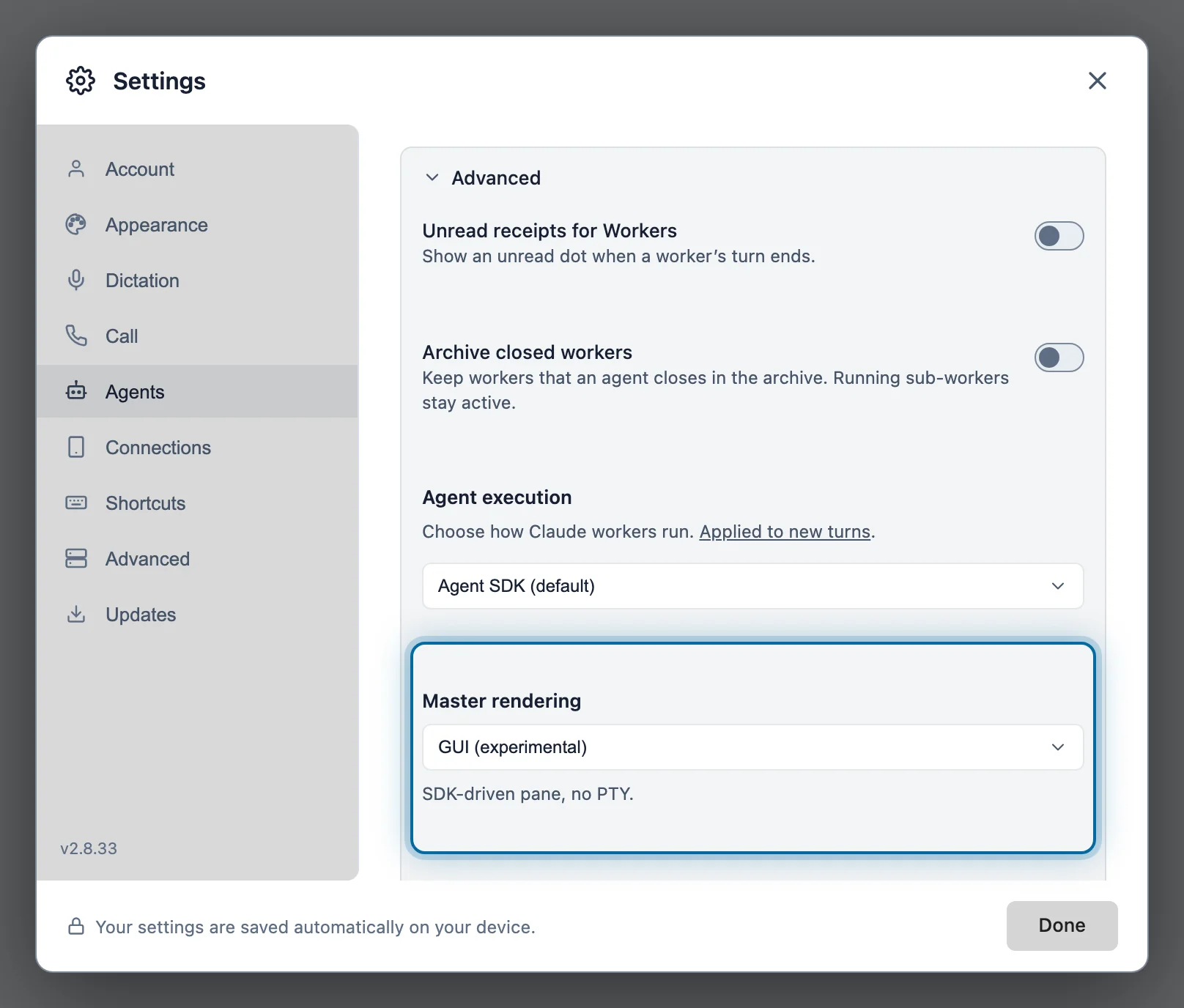
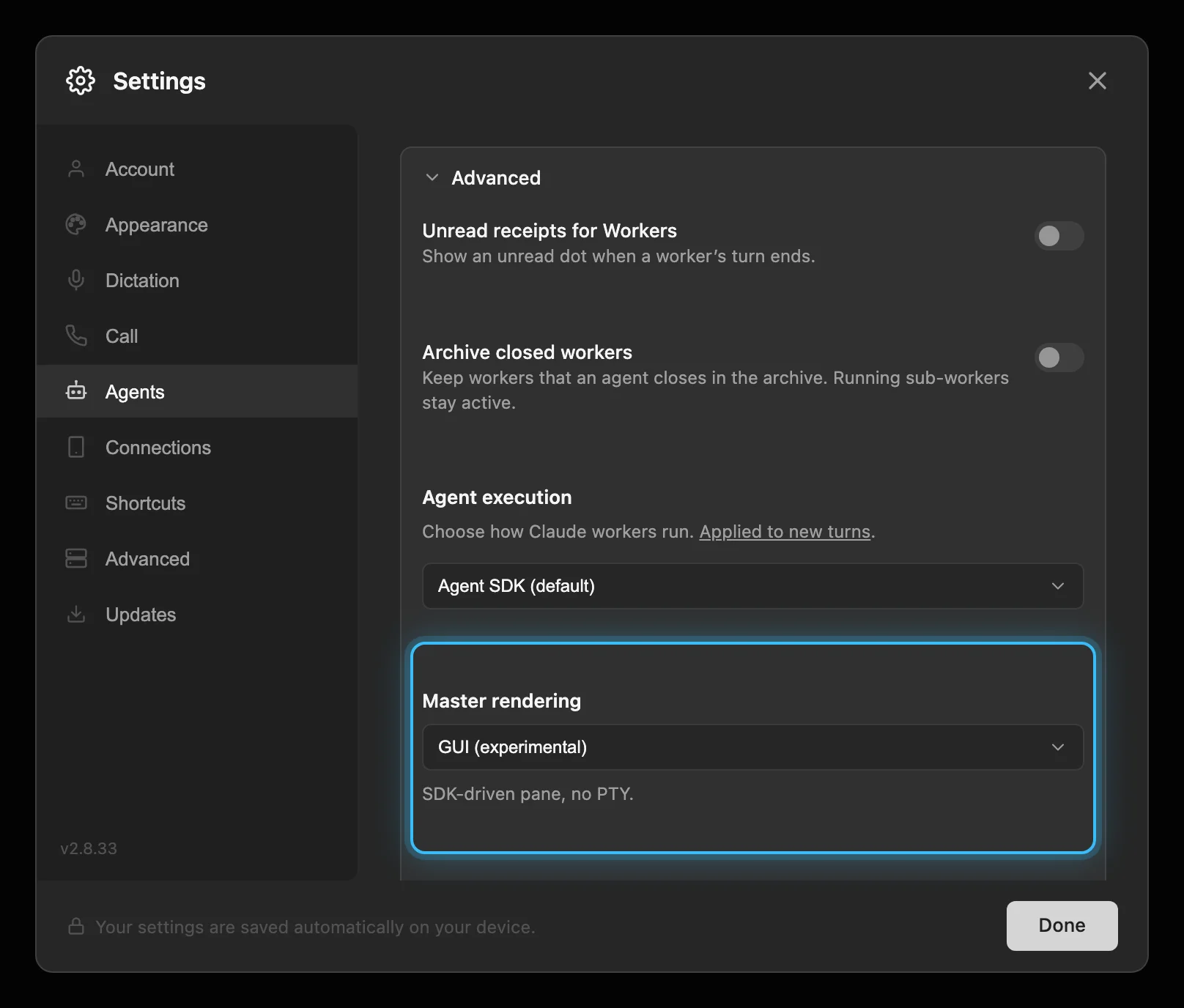
This is for GUI team leads and workers. A TUI team lead runs in a terminal pane, so it keeps its own harness and switches with that CLI's own commands. To get a GUI team lead, switch the rendering setting once:
Try it
- 🪟 Open a pane. Any master or worker pane with some history in it.
- 🎛️ Open the picker. Click the harness and model control in the pane footer.
- 🔀 Pick a harness. Choose another harness tab and a model. The control shows the pending selection for the next turn.
- 💬 Send a message. Expand the Handoff context beneath it to see what was carried over.
Switching back works the same way. The pane keeps its id, its position and its worktree through every hop; only the model on the other end changes.