How to Use Claude Code and Codex From Your Phone
A practical decision guide comparing Claude Code Remote Control, cloud sessions, Codex remote, SSH, and AgentGrid for mobile coding. Checked November 15, 2026.
 AgentGrid
In this story
AI-drafted for AgentGrid, which makes the AgentGrid mobile app discussed below. Documentation checked November 15, 2026. This is a guide built from vendor documentation, not a hands-on test.
You can check a build, approve an action, or steer a coding agent from your phone. Choose the execution host first.
Compare where commands run, which files and tools they can reach, and what must stay awake. This guide covers Claude Remote Control, Claude cloud sessions, Codex remote, SSH with tmux, and AgentGrid mobile.
Claude Code Remote Control
Anthropic's Claude Code Remote Control connects the Claude mobile app or claude.ai/code to a session on your machine. Commands execute on the host, subject to its permissions, with access to local files and configured Model Context Protocol (MCP) servers. Mobile attachments download to the host.
Traffic travels through the Anthropic API over TLS, and transcripts are stored on Anthropic servers while connected. Sleep pauses remote access; Claude Code reconnects when the machine wakes and comes online. During a network outage, an interactive session can keep working locally. Server mode has an outage timeout.
Start an interactive session with --remote-control, or type /remote-control:
claude --remote-controlEach interactive process supports one remote session, shared across your terminal, browser, and phone simultaneously. For concurrent sessions, run server mode:
claude remote-control --spawn worktreeServer mode runs up to 32 sessions by default (--capacity). With --spawn worktree, on-demand sessions get separate git worktrees; the initial pre-created session stays in the current directory. Requires a Pro, Max, Ultra, Team, or Enterprise subscription; API keys are unsupported. Anyone can disable Remote Control via disableRemoteControl; Team and Enterprise plans require an Owner to enable it first.
Claude Code cloud sessions in the Claude app
Anthropic also offers cloud sessions via the Code tab in the Claude mobile app and at claude.ai/code. Cloud sessions run on Anthropic-managed infrastructure by default, or an organization's configured self-hosted environment. Select a repository and branch from mobile. Sessions can watch a pull request to fix CI failures or review comments.
Your computer can stay off. Projects run threads in the cloud by default. Separately, Dispatch sends tasks to your computer's Desktop app and requires Pro, Max, or Ultra.
Cloud access is broader than Git: sessions support repository MCP servers and enabled connectors. From the CLI, you can upload a repository bundle, including eligible uncommitted changes to tracked files. They do not automatically inherit files, databases, or servers available only on your laptop.
Codex remote connections in ChatGPT mobile
OpenAI provides mobile access to Codex through the ChatGPT app on iOS and Android via remote connections. This connects to the ChatGPT desktop app on macOS or Windows to monitor progress, approve actions, and send prompts.
Start in the ChatGPT desktop app: Settings > Connections > Control this Mac or PC, then Set up or Add. Approve access and scan the QR code with your phone. Use the same account and workspace on both devices. Setup is unavailable from the Codex CLI or IDE extension; workspace admins may need to enable access.
Host power rules are strict. On macOS, laptops stay available with the lid open and power connected; closing the lid disconnects unless connected to an external display. Choosing Sleep stops access. On Windows, Computer Use runs in the foreground, requiring an unlocked session.
DIY SSH and tmux from a mobile terminal
Developers seeking an open setup without vendor pairing run SSH from a mobile terminal to a workstation or cloud VM hosting any CLI agent.
A multiplexer like tmux or screen helps sessions survive a terminal disconnect so you can reconnect later. It does not keep a sleeping host running.
You maintain the host and SSH authentication and enter terminal commands on a touchscreen. Dynamic DNS or a VPN may help with reachability, depending on your network; neither is universally required.
AgentGrid mobile companion
The AgentGrid mobile app (in beta on iOS via TestFlight and Android via Google Play) is a companion for watching and prompting the agents and team leads running on your computers across harnesses, including Claude Code and Codex.
The phone connects over the AgentGrid relay without QR pairing or port forwarding. Using a phone with your computer requires an AgentGrid Pro subscription, unless both were signed in before November 6, 2026 (UTC) and have remained signed in.
Canvas and list modes show your workspaces, terminal output and queued messages. Send prompts or use AgentGrid dictation (Pro). You can attach up to four images per message; video clips over 5 MB are refused before attaching.
AgentGrid mobile is explicitly a companion: your computer must run AgentGrid and show an Online state. Desktop-only pane types (browser, source-control, image, video) cannot be spawned from the phone.
Why does it say disconnected?
A disconnected phone does not establish whether the agent is still working on its host. Anthropic and OpenAI document these causes and recovery steps:
- Host sleep and lid state: For local-hosted connections, host sleep stops access. On a Mac, closing the lid without an external display stops Codex access. Sleeping also pauses Claude Remote Control access until the machine wakes. Closing the terminal or quitting the app that runs the session takes it offline until you bring it back.
- Process concurrency: An interactive Claude Code process supports one remote session. Resuming the same conversation in a second terminal leaves Remote Control off there (
Remote Control not started here) rather than taking it away from the first. For multiple sessions, use server mode (claude remote-control, default capacity 32). - Outage thresholds: In server mode, Claude Code exits after roughly 10 minutes offline. Interactive sessions retry locally, but disconnect if they "could not reach the Remote Control server for about 30 minutes" due to failed heartbeats. Run
/remote-controlto reconnect. - Session recovery window: Stopped server sessions can be restored within roughly four hours via
claude remote-control --continueor--session-id <id>. Interactive sessions resume withclaude --continueorclaude --resume. - Policy and settings: Anyone can disable Remote Control via
disableRemoteControl. On Team and Enterprise plans, an Owner must enable the feature in admin settings.
Choose by where the work runs
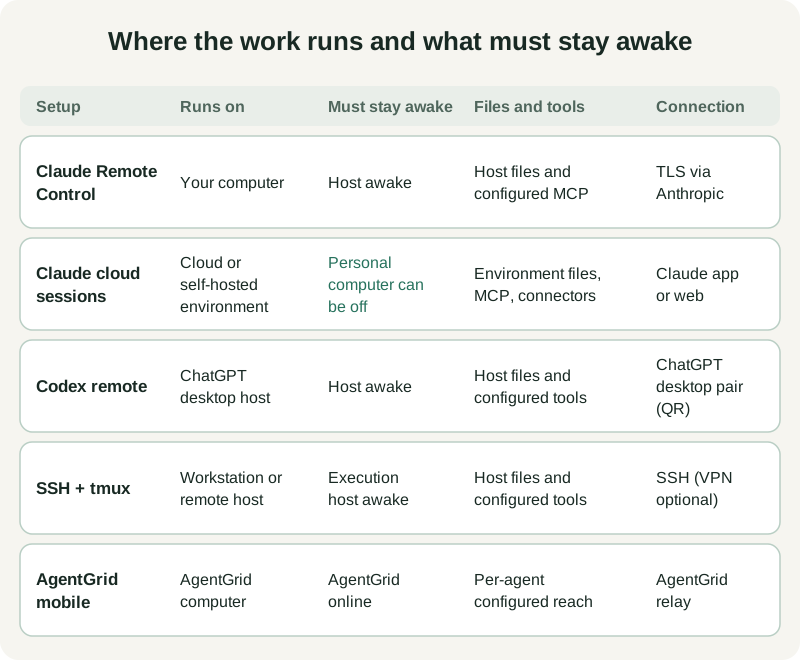
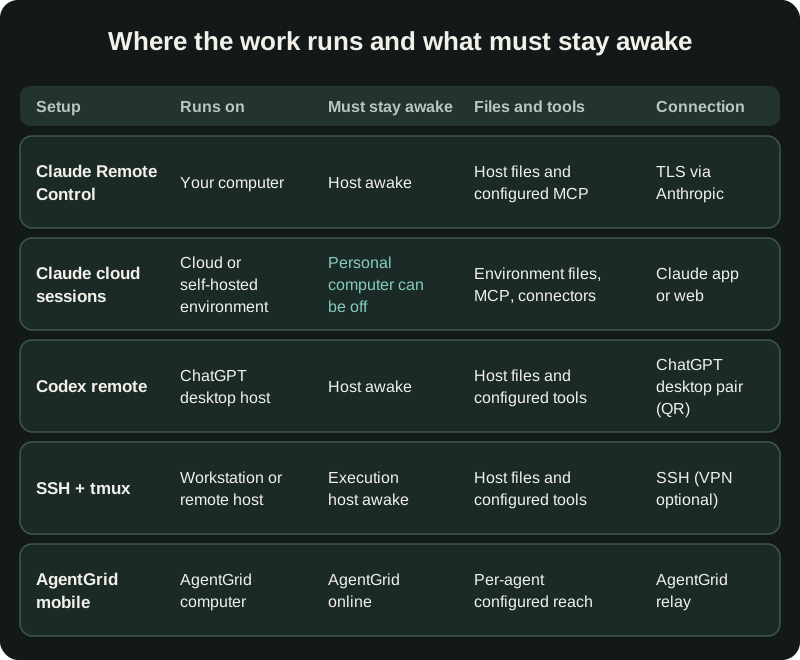
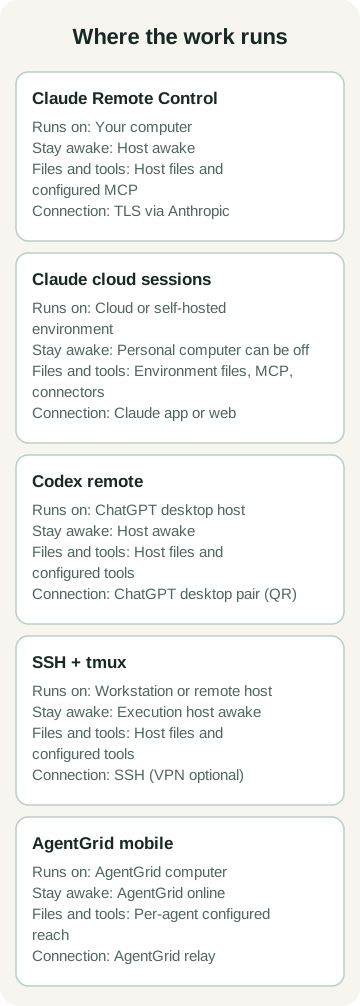
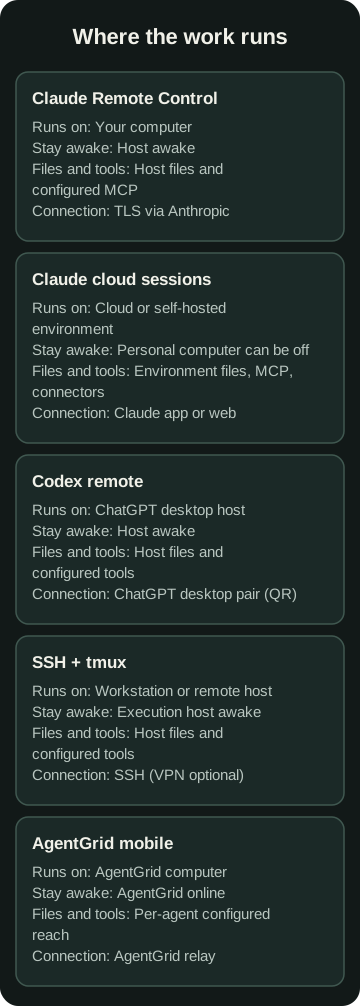
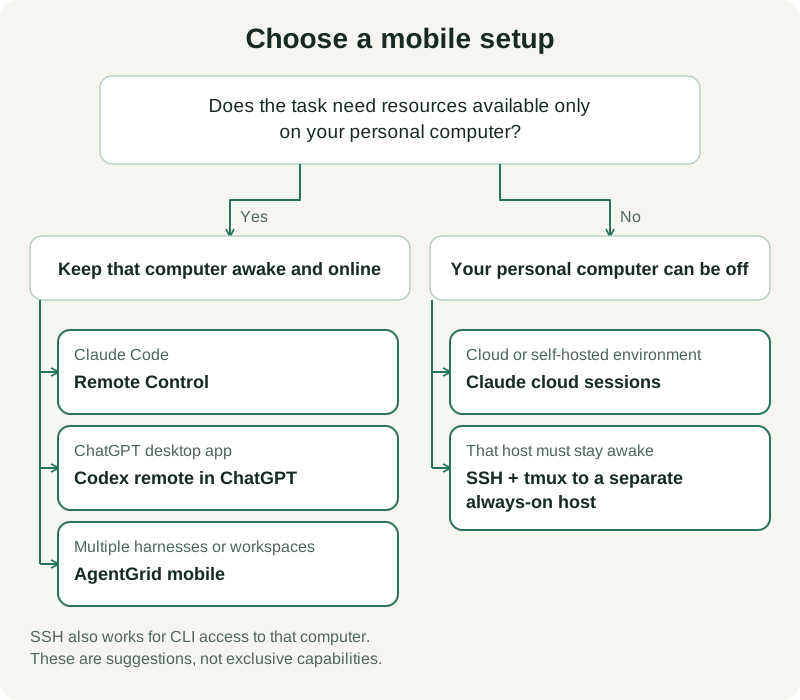
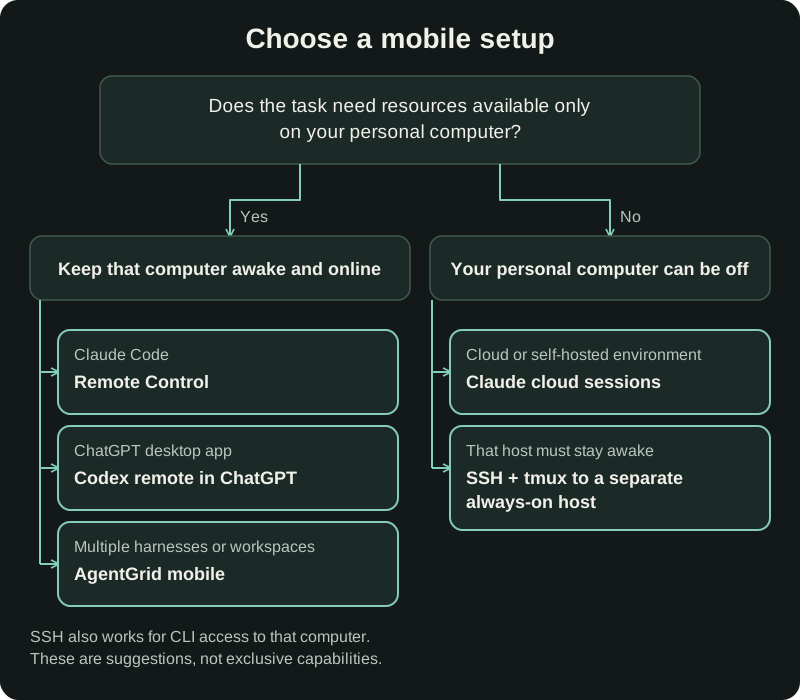
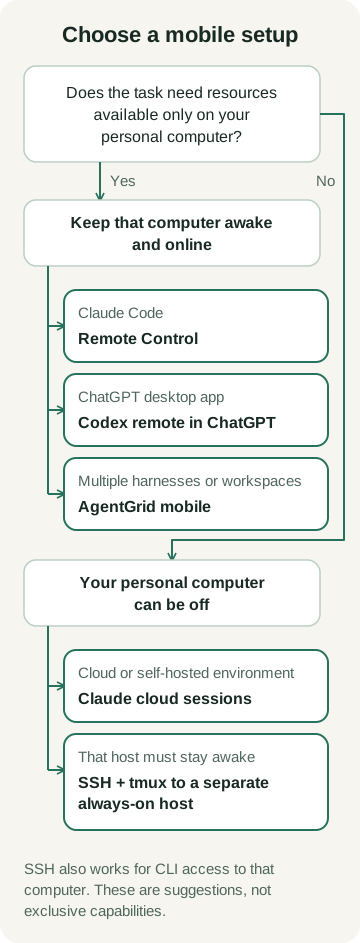
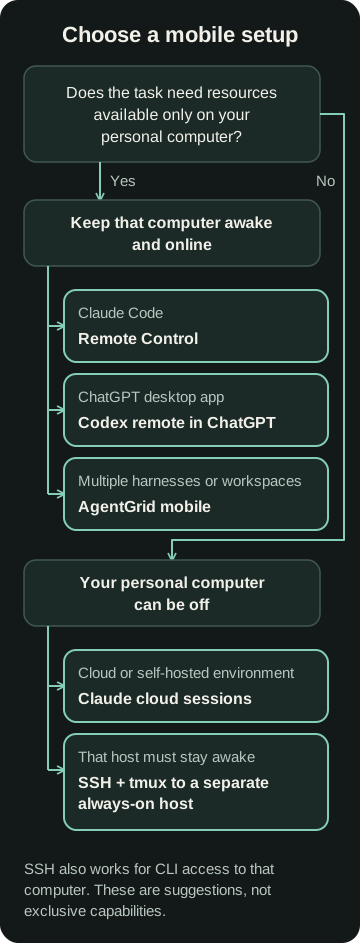
If the task needs laptop-only resources, keep that laptop awake and choose a host-backed connection. Otherwise, cloud sessions or SSH to a separate always-on host let your personal computer stay off. Then choose by harness and interface.
| Setup | Where compute runs | Host must stay awake | Local files & MCP | Best fit |
|---|---|---|---|---|
| Claude Remote Control | Your computer | Yes (sleep pauses access) | Host files and configured MCP, within permissions | Steering Claude Code sessions |
| Claude cloud sessions | Cloud or self-hosted environment | Personal computer can be off | Environment files, MCP and connectors | Tasks in a configured cloud environment |
| Codex remote | Connected computer (ChatGPT app) | Yes (sleep stops access) | Host files and configured tools, within permissions | Steering sessions on macOS or Windows |
| DIY SSH + tmux | Workstation or remote server / VM | Execution host awake; personal computer can be off if separate | Host files and configured tools | Headless servers and CLI agents |
| AgentGrid mobile | Your computer (AgentGrid) | Yes (AgentGrid online) | Whatever each agent can reach | Watching and prompting agents across multiple harnesses |
Watch every agent from one phone with AgentGrid
For agents across multiple harnesses, AgentGrid brings their conversations and terminal output into one mobile companion. Your computer remains the execution host.
Download AgentGrid for macOS, Windows, or Linux, and consult the mobile app guide to connect your phone to your active workspaces.