How to Create Killer Motion Graphics with Claude Opus 5.5
Set up Claude Code in AgentGrid, turn a visual brief into a motion graphics project, then preview, refine and find your exported videos.
In this guide
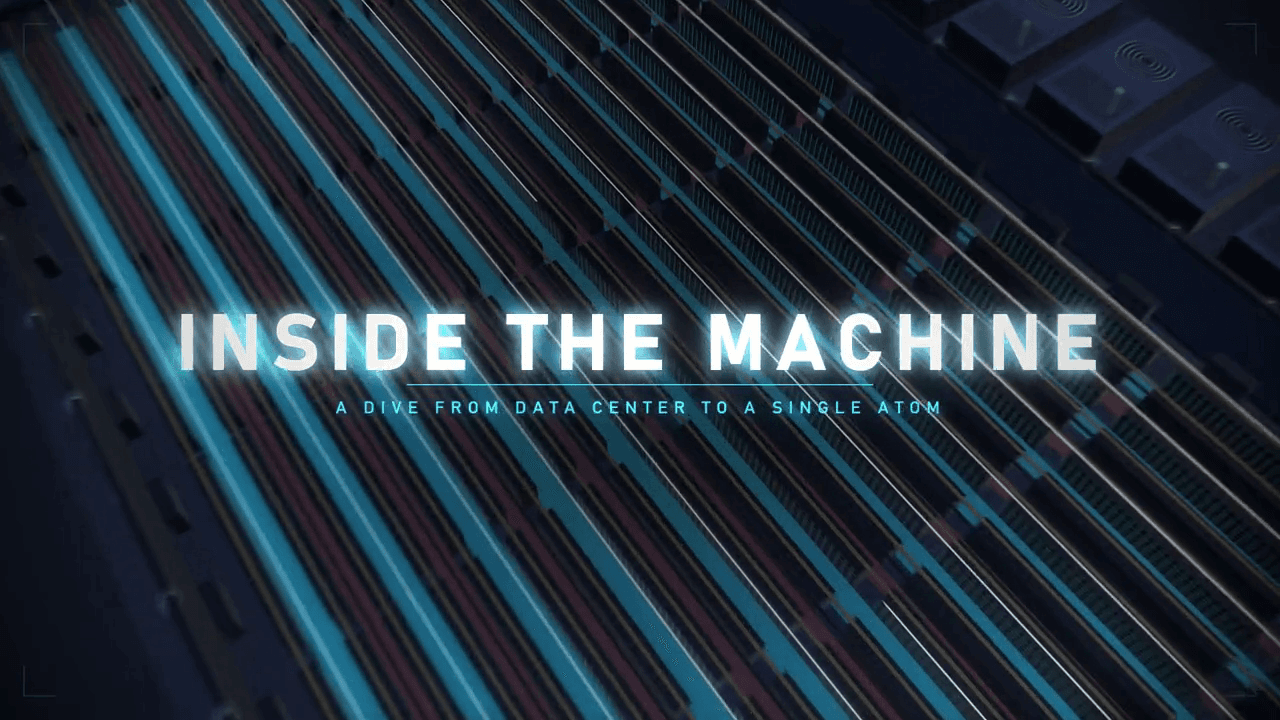
Start with a camera journey: a data center, a server rack, a GPU, silicon, then a pullback to where you began. This guide shows how to give that brief to Claude Opus 5.5 in AgentGrid and work toward a browser preview, an exported video and a canvas note that tells you where to find it.
The reference project, Inside the Machine, is built around a 30-second sequence using Three.js and Canvas, with browser rendering and FFmpeg exports. Treat its hardware and microscopic imagery as a stylized visual explanation. Your version will need its own preview and revisions. This guide was drafted with AI for AgentGrid.
1. Check your Claude subscription
Use a Claude subscription that includes Claude Code and gives your account access to Opus 5.5. Pro and Max subscriptions support Claude Code; sign in with the Claude account attached to your plan. AgentGrid does not supply that subscription. Anthropic's subscription setup instructions explain the login flow and shared usage limits.
Confirm Opus 5.5 is available to your account before starting the project. Anthropic lists it as a supported Claude Code model.
2. Install AgentGrid and connect Claude Code
Download AgentGrid, install it for your operating system and sign in to the desktop app.
Open Settings -> Agents. Find Claude, the provider entry for Claude Code, install it if needed, and complete its sign-in flow. You can also do this during onboarding. If AgentGrid cannot find the installation or your login needs attention, follow Coding harness setup.
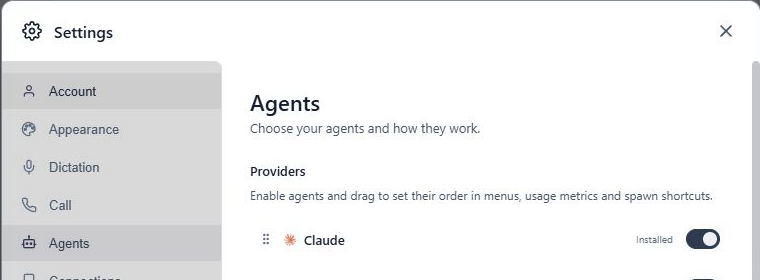
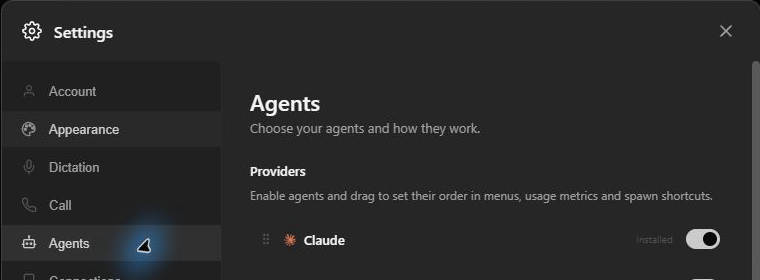
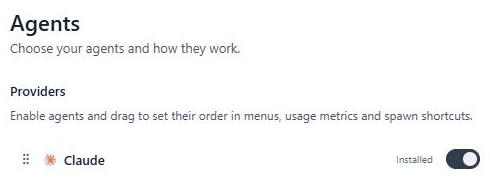
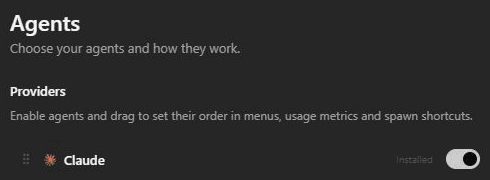
Find Claude under Settings > Agents. This example shows it installed and enabled.
Screenshot by AgentGrid.Open full-resolution screenshotOpen full-resolution screenshot3. Open a new project folder
Create an empty folder named motion-graphics in a location you can find again, such as your projects directory.
Open a new space in AgentGrid with Ctrl+T on Windows or Linux, or Cmd+T on macOS. Click Open Project Folder and select your folder. You can also drag the folder onto the empty canvas. New agent panes use this project folder as their working directory.
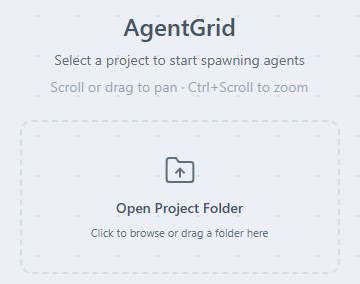
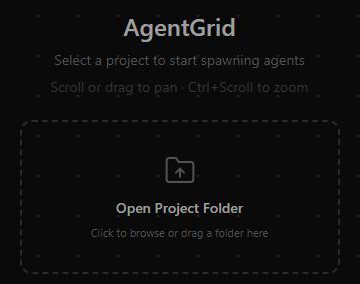
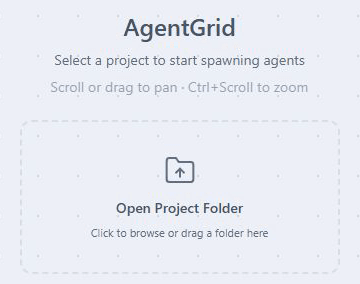
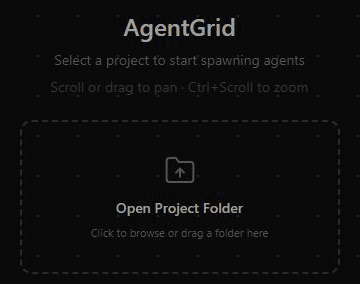
Choose the folder that will hold your animation project.
Screenshot by AgentGrid.Open full-resolution screenshotOpen full-resolution screenshotKeep the animation's source, previews and exports together in this folder. That makes later revisions easier to follow.
4. Spawn Claude Code and select Opus 5.5
Right-click an empty area of the canvas. Under Agents, choose Claude Code. If it is in the overflow menu, open Other agents to find it.
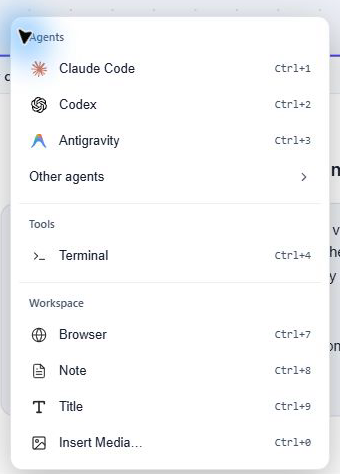
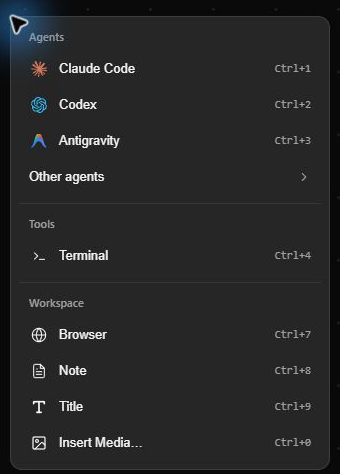
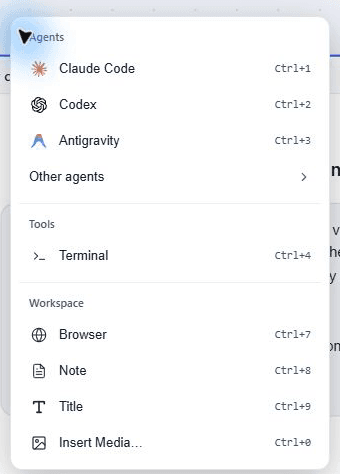
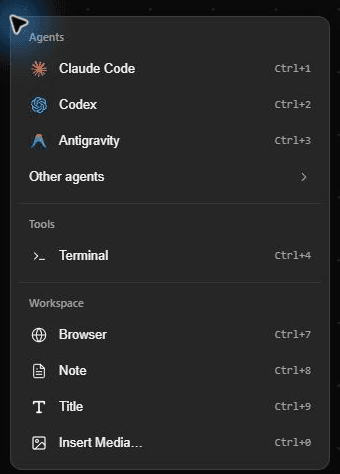
Right-click empty canvas and choose Claude Code.
Screenshot by AgentGrid.Open full-resolution screenshotOpen full-resolution screenshotIn the GUI conversation pane, click the model name in the footer. Its tooltip is Choose model for next turn. Select Opus 5.5, then open the adjacent effort menu and choose Xhigh. That is the app's label for X-high effort. Check both selections before sending the brief; a Next: label describes the next request, not work already completed.
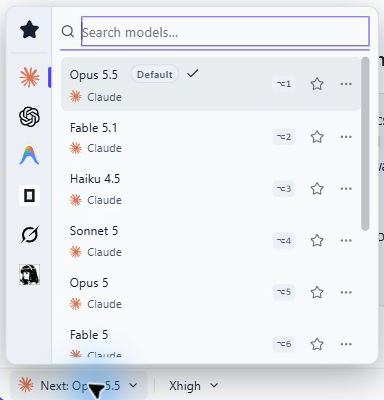
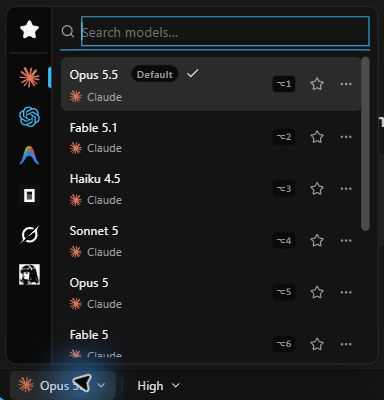
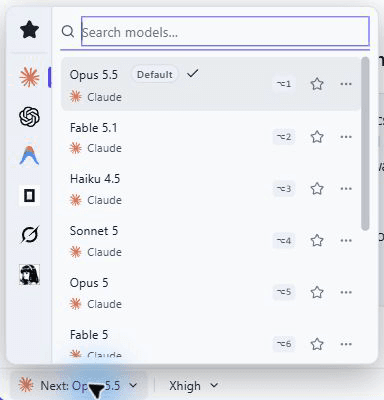
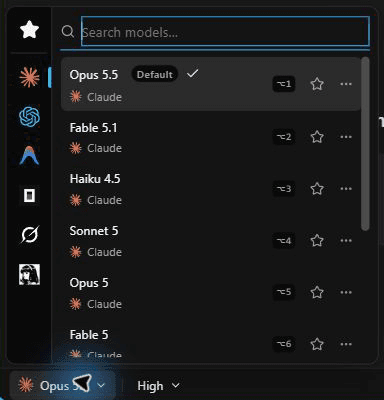
Choose Opus 5.5 in the model menu.
Screenshot by AgentGrid.Open full-resolution screenshotOpen full-resolution screenshot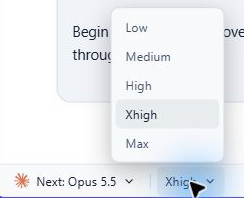
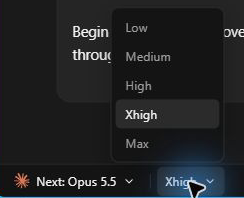
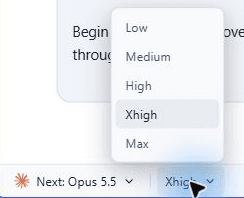
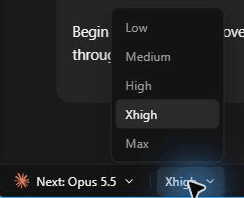
Choose Xhigh for the next turn before sending the brief.
Screenshot by AgentGrid.Open full-resolution screenshotOpen full-resolution screenshotIf a fresh, empty pane opens in terminal mode, the tui control at the top switches it back to GUI. Switching ends that terminal session, so make this choice before entering the brief. To stay in terminal mode, use /model to select Opus 5.5 and /effort xhigh to set effort. See Claude Code's model and effort controls.
X-high requests deeper reasoning and can use more tokens. This walkthrough specifies that setting; your animation still needs a preview and review. If Opus 5.5 or the effort control is unavailable, check your Claude Code version and account access before continuing.
5. Submit the motion graphics brief
Copy the prompt below into Claude Code. For a different subject, adapt the objects and the sequence while keeping a clear beginning, a journey through the details and an ending. Keep the final sentence: it asks the agent to leave a practical guide to your output files.
Original prompt
Create a dynamic 30-second 3D motion graphics video that takes the viewer from an overview of a data center all the way down to the atomic structure of silicon, then zooms all the way back out at the end. Go all out.

Begin with a top-down overview of the server room, then move through this sequence:

1. The data center and server room.
2. A server rack.
3. An individual server.
4. A GPU inside the server.
5. The chip on the GPU (H100).
6. The atomic structure of silicon inside the chip.
7. A continuous return journey, zooming all the way back out to the full data center.

Make the server room, rack, server, and GPU dissection fully 3D. Use animated cutaways and exploded views so it feels like we are physically dissecting each layer while zooming deeper inside it. Keep the camera movement fluid and the transitions connected, preserving a clear sense of scale and spatial continuity throughout the journey. Build the pacing and visual energy toward the microscopic reveal, then finish with a dramatic pullback to the opening overview.

Once you are done, create a simple step by step note on the canvas to help me find the location of the videos.
Submit the brief, then respond to any setup questions. Claude may need to install project dependencies or resolve a rendering problem before it can show a preview. Follow the work in the pane and read any permission requests before approving them.
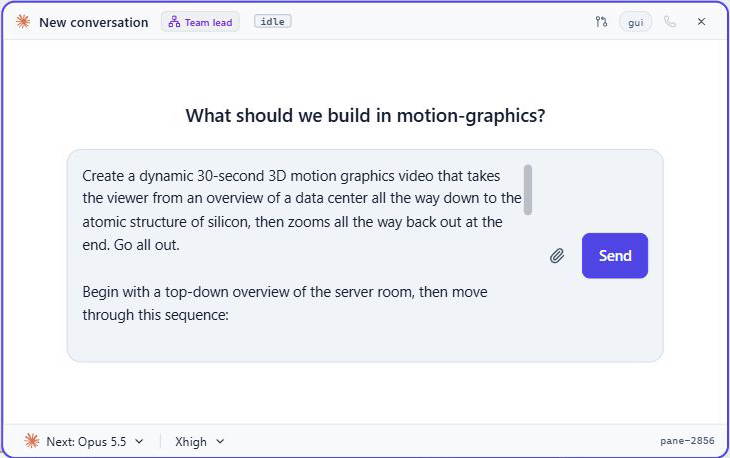
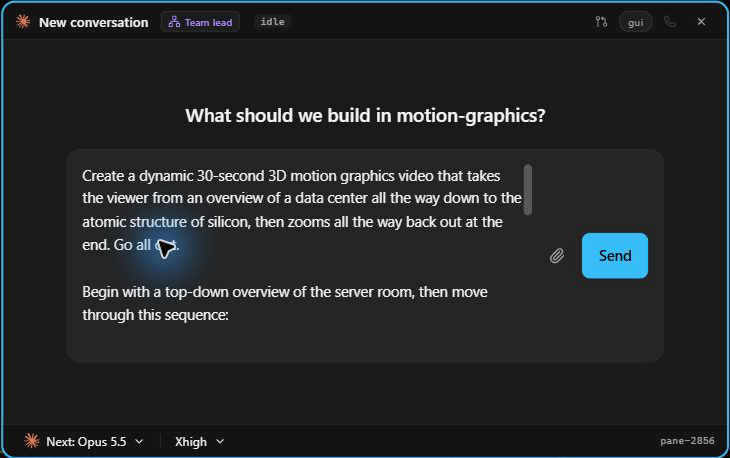
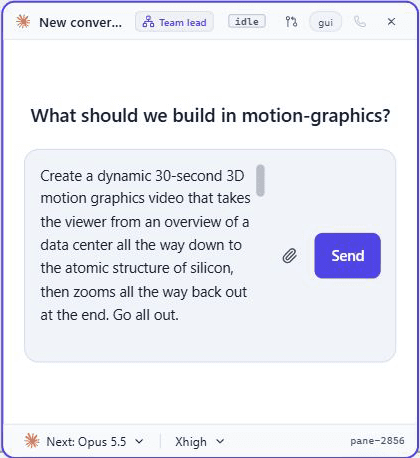
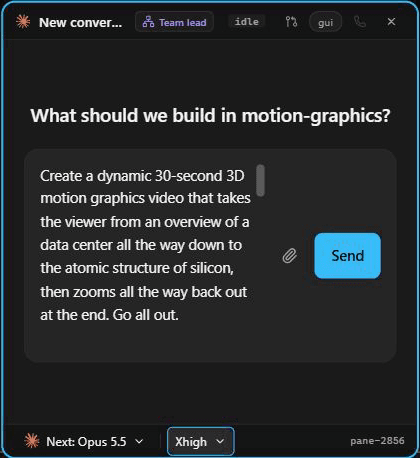
The brief is ready to send. These settings apply to the next turn; the pictured draft has not been submitted.
Screenshot by AgentGrid.Open full-resolution screenshotOpen full-resolution screenshotPreview the animation and refine it
Ask Claude to start the local preview and give you its URL. Right-click the canvas, choose Browser, and open that address. Keep the browser beside the Claude Code pane so you can describe the frame you are looking at.
Watch the full journey. Can you follow the move from room to rack to chip? Do objects remain visible during the cutaways? Does the return reach the opening view? Check labels at the size people will actually watch the video.
In the reference project, the preview includes play/pause and a time slider. Its source combines Three.js for the larger 3D scenes with Canvas for the microscopic sequence and compositing. Your project's implementation may differ.
Silent preview of Inside the Machine, the existing reference project. Stylized hardware and microscopic imagery; your result will need its own revisions.
Open the silent videoGive one concrete revision at a time. For example, this is a suggested follow-up, not a recorded result:
At the transition from the GPU to the chip, the camera moves too quickly to follow. Slow that section down, keep the full video at 30 seconds, and show me the revised browser preview before exporting.
If the preview is blank or freezes, send Claude the visible error or describe exactly where playback stops. Ask it to fix the preview before rendering the final file. A short test export is useful for checking motion and framing before a larger render.
Export and find your videos
Once the preview looks right, ask for an MP4 at your intended size and aspect ratio. The reference project's render scripts use a browser to produce frames and FFmpeg to encode them; its main render is configured for 1920 x 1080 at 60 frames per second. That is an example output specification, not a requirement for every project.
Use a silent export for this exercise. Add music only when you have permission to use and publish it.
Open the canvas note requested in the prompt. Follow its steps to the output folder and open the actual video file. The reference project stores its silent export at out/video_silent.mp4; your filenames may differ. If the note is missing or unclear, send this suggested follow-up:
Create the output-location note now. List the full folder path and exact video filenames, explain how to open the silent MP4, and tell me which file is the latest export.
Watch the exported file from beginning to end. Check that it opens, has the intended duration and dimensions, includes the final pullback, and has no blank frames or clipped labels. Keep the source project so you can request another edit without starting over.
Related
- Download AgentGrid to keep your agent, preview and output-location note in one workspace.
- Quickstart covers project folders and canvas navigation.
- Browsers explains browser panes.
- Notes explains notes on the canvas.